8. Run the Pre-Loaded Demo
This section describes how to quickly get started with the DA1469x ProDK and run the preloaded demo.
Step 1 : Take the daughter board and Plug it to the to main board through the dedicated connector Figure 3. Take care to match the orientation.
Step 2: Connect a USB type A to mini-B USB cable on the micro USB header on the ProDK Main board to power On. The other side of the USB cable can be connected to a PC/Laptop (Figure 6).
Step 3: After the ProDK is powered, and if everything works fine then the following LEDs status can be seen as shown Figure 22
On the daughter board, Red LED 1 is blinking. The LED blinking periods in ms is defined in
config/pxp_reporter_config.hOn the main board Blue LED D1, Green LED 4 and Green LED 5 are ON.
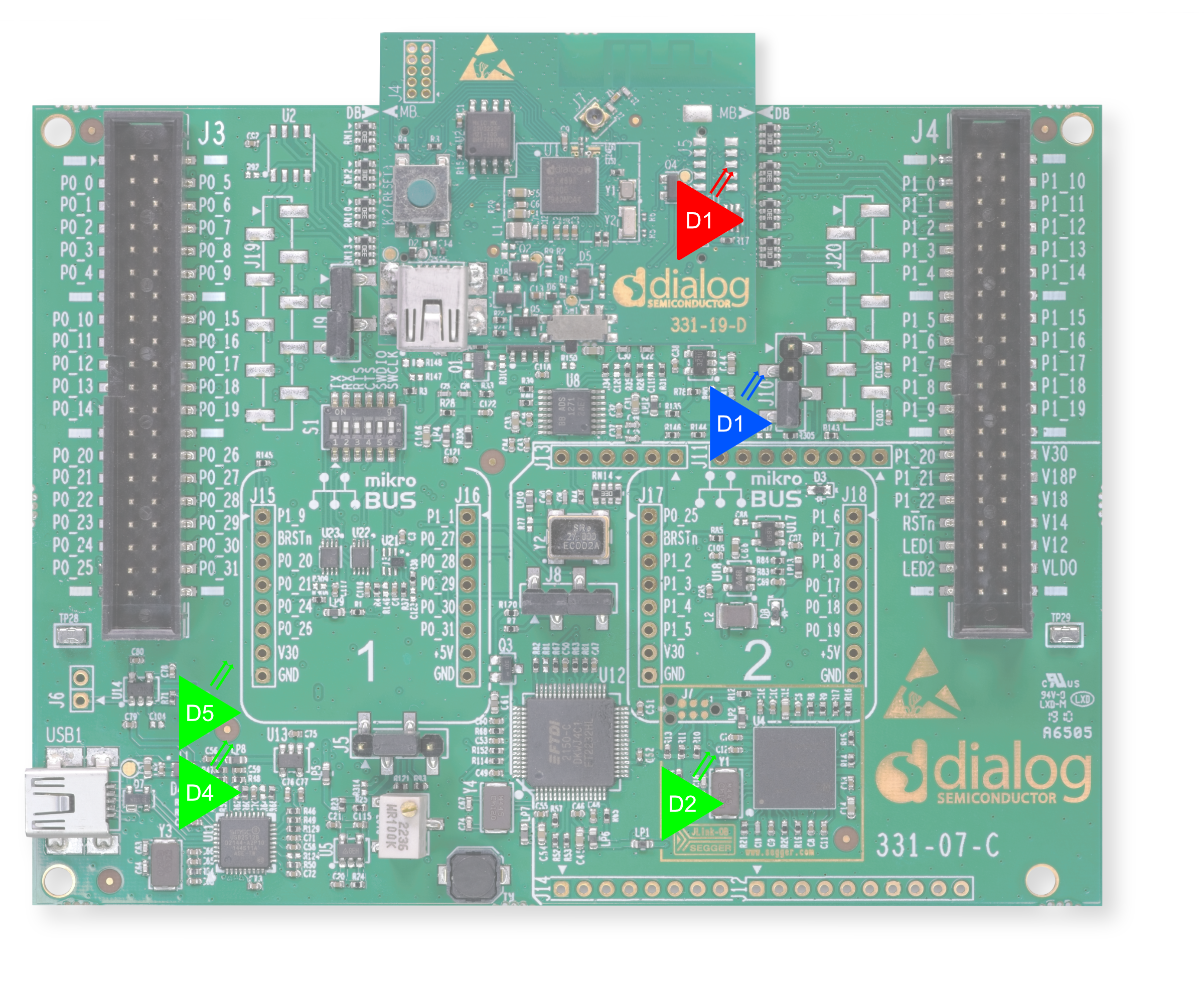
Figure 22 LEDs Status
Step 4 The ProDK now starts to advertise over Bluetooth. The Pre-Loaded demo application is executed from QSPI flash. Open your application to scan and connect to the Dialog DA1469x device. Refer to Figure 23
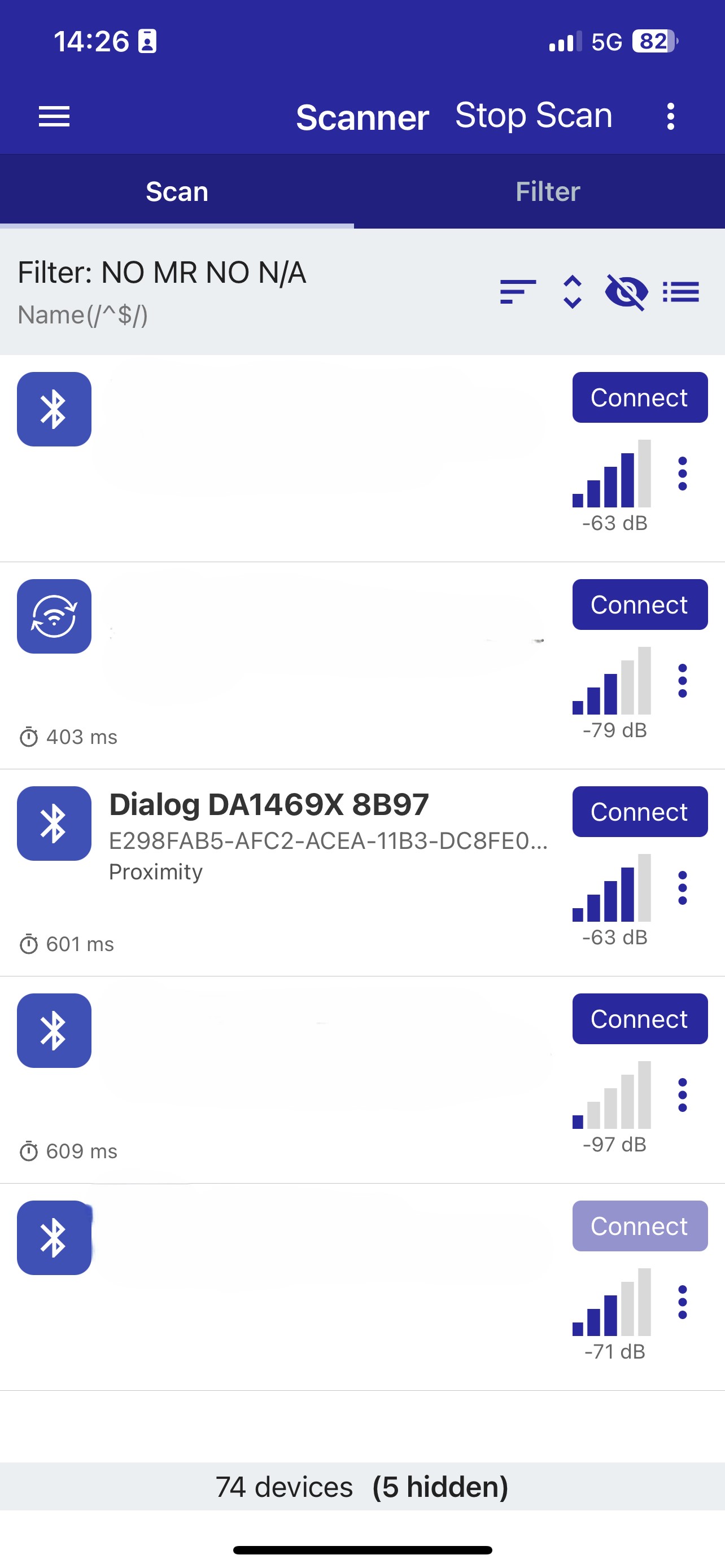
Figure 23 Pre-Loaded Demo: Interacting with Renesas SmartBond mobile BLE Application
Note
The number shown in Figure 23 is aligned with he number observed on the Terminal program Figure 10 for windows.
Step 6 As a Feature, alerting is done using the RED LED available on the daughter board, refer to Figure 22. After connection, you can write value to Alert Level characteristic in Immediate Alert service:
0x00 (No alert) - the white LED on ProDK device does not blink
0x01 (Mild alert) - the white LED on ProDK blinks slow immediately
0x02 (High Alert) - the white LED on ProDK blinks fast immediately
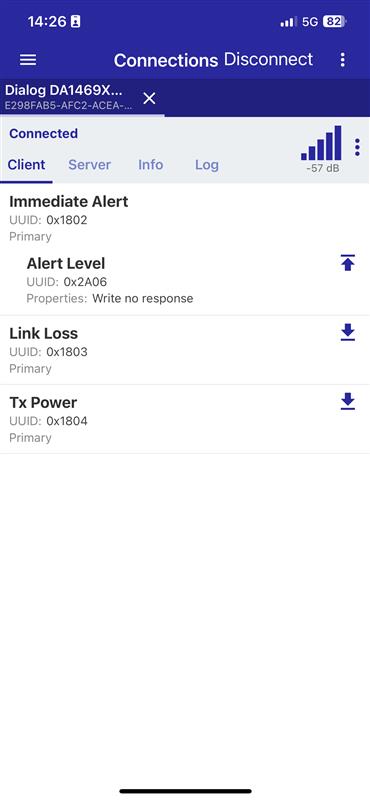
Figure 24 Pre-Loaded Demo: Alerting Manual testing
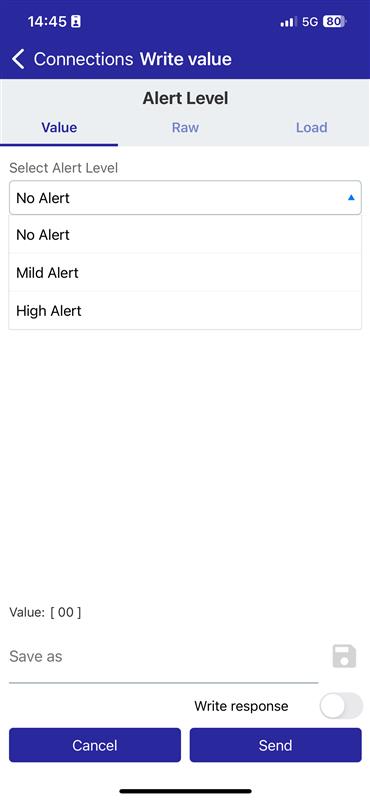
Figure 25 Pre-Loaded Demo: Alerting Level