1. Example description
A DA14585/6 HID gamepad demo project. Used to demonstrate the usage of HID features over BLE with HOGPD profile.
Note The example can be downloaded from Here.
2. Example Feature
Standard HID gamepad over HOGPD, works with Android devices and Windows 10 PC with Bluetooth 4.2+
Alternative HID digitizer mode(mainly for iOS devices) over HOGPD, works will all platforms with Bluetooth 4.2+
2 Joysticks over 4 ADC channels, 4 buttons over GPIO wakeup adapter. Capable to play games with simple control scheme
Configurable Joystick sensitivity and button screen touch mapping through custom BLE profile (for digitizer mode only)
Movement joystick and camera joystick implementation based on the digitizer control scheme
3. HW and SW configuration
Hardware configuration
Required componets:
DA145xxDEVKT-P PRO-Motherboard, with DA1458x daughter board QFN40/48. Or a DA14531 daughterboard, the module board does not have enough pins for this example.
The user manual for the development kits can be found:
here for the DA145xxDEVKT-P PRO-Motherboard.
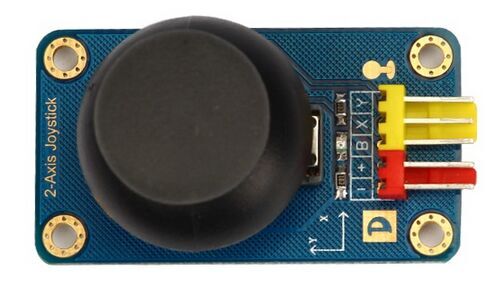
2-axis analog joystick with push button * 2
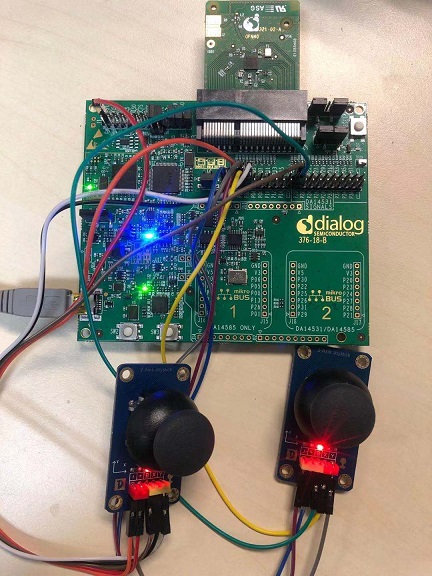
Wire Connection for DA14585 and DA14586:
Joystick 1 (Regard as left stick, or LS in the code):
Power supply - VBAT
Ground - GND
X axis - P0_0
Y axis - P0_1
Push Button - P2_0 (set for button “A”, active HIGH)
Joystick 2 (Regard as right stick, or RS in the code):
Power supply - VBAT(or V_FLASH_SUPPLY)
Ground - GND
X axis - P0_2
Y axis - P0_3
Push Button - P2_1 (set for button “B”, active HIGH)
Buttons:
put jumper J10 to enable buttons on the dev kit mother board
SW2 - P0_6 (set for button “Select”, active LOW)
SW3 - P1_1 (set for button “Start”, active LOW)
Wire Connection for DA14531:
Joystick 1 (Regard as left stick, or LS in the code):
Power supply - VBAT
Ground - GND
X axis - P0_1
Y axis - P0_6
Push Button - P0_3 (set for button “A”, active HIGH)
Joystick 2 (Regard as right stick, or RS in the code):
Power supply - VBAT
Ground - GND
X axis - P0_2 or not connected, based on DEBUGGING flag
Y axis - P0_7
Push Button - P0_4 (set for button “B”, active HIGH)
Buttons:
SW - P0_9 (set for button “Select”, active LOW)
SW3 - P0_11 (set for button “Start”, active LOW)
If the joystick module is not available, make sure to set CFG_USE_JOYSTICKS to 0 in order to disable related codes and prevent the device sending funny HID reports
One of the four ADC channels is shared with the SWD debugging. Therefore there is a flag added in user_periph_setup.h undefining this flag will enable the fourth channel, but debugging will be impossible.
Software configuration
This example requires:
Keil uVision 5
6.0.14.1114 (https://www.dialog-semiconductor.com/da14531_sdk_latest)
SEGGER’s J-Link driver installed
4. How to run the example
4.1. Initial Setup
For iOS devices, search for global define CFG_USE_DIGITIZER, change its value from “0” to “1”. Doing this will configure the device as an HID digitizer that able to work with iOS devces. Otherwise the device will work as standard gamepad.
Nothing needs to be changed or configured for other test platform, just run the SDK path configuration python script or manually put the project folder under 6.0.14.1114\projects\target_apps\ble_examples, build and run as any other example project.
4.2. Function Test
Test with Android APP
Search and connect to device “DLG-Gamepad” in the system setting->Bluetooth page
After pairing, one should be able to use joystick 1 to navigate through the menu, and use button “A” to enter, “B” for back
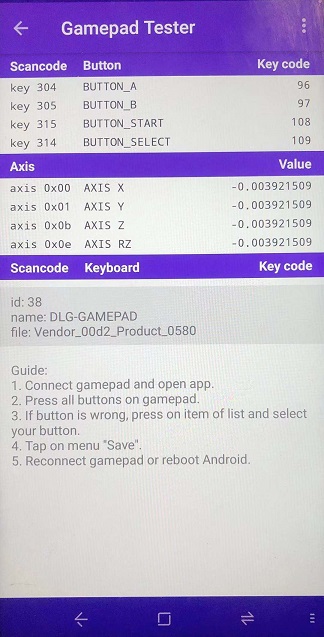
An app called Gamepad Tester could be used to explore more detailed HID reports info of the device, downloadable from Google Play Store
To disconnect, remove the paired device from the system bluetooth device info page
Test with Windows 10 PC
Go to windows settings -> Devices -> Bluetooth & other devices settings page (Make sure the PC model has BT4.2 compatible Bluetooth module equipped)
Click “Add Bluetooth or other device” -> Bluetooth, scan and connect to device “DLG-Gamepad”
Wait for the device connect, pair, and system will automatically install general gamepad driver
Test the device with any PC game that supports general gamepad, do note that you may need to rebind the button map for some games.
This site can also be used to check with incoming gamepad hid reports

Test with iOS devices
Make sure configure the example as HID digitizer mode by setting CFG_USE_DIGITIZER to 1
In Bluetooth setting page from iOS system settings, scan and connect to device “DLG-Gamepad”
Click “OK” when a pairing request window pops out
Use test app like Test Multitouch to check control scheme of both joysticks and location of 4 buttons
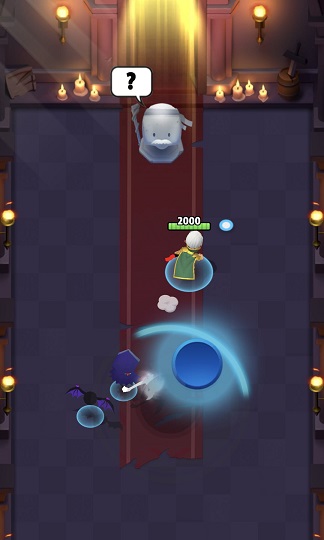
Try game control for games with simple control scheme (e.g. Arch hero)
Digitizer mapping configurations
The screen was mapped as below with 2 axis, X and Y from 0 to 100
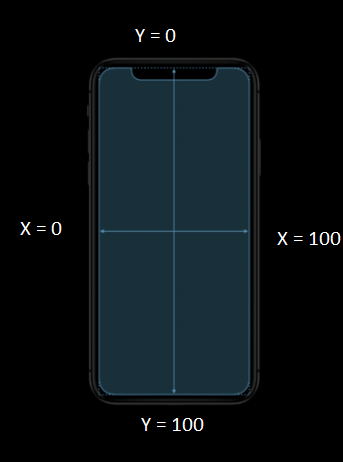
By default, the key mappings are defined in user_gamepad.h, however, this can be lively configured to fit different game controls
Connect to the device with BLE debugger app like LightBlue to change the mapping by sending 16 byte hex numbers:
byte 1 - 8: 4 pairs of {X,Y} mapping for button A, B, Select and Start. From 0 to 100 (0x64)
byte 9 - 16: 2 pairs of {X center, Y center, radius, velocity}
X center and Y center defines the starter point for the direction control
Radius is the reach distance of the LS, only used by LS. Should not larger than closest distance from center point to a screen side (out of 100)
Velocity is the movement speed multiplyer of controlling RS. Should not larger than 100
LS and RS works in a different manner, where LS moves the touch point within a circle(or square in this case), RS moves the touch point all over screen range
sending anthing else (not 16 bytes long) will reset the configurations to the default stage
When the joystick not pushed to any direction (both X and Y axis ADC samples close to a middle point), the HID reports will not be sending, this is called the Deadzone of a joystick, and the range of deadzone is configurable with
5. Software Info
user_peripheral.c
Main application
user_gamepad.c
Joystick function implementations
Button registration and detection
Joystick position polling and calculations
user_gamepad.c
All important joystick configurations
HID device mode
Joystick position update rate
Defaut key mapping
ADC adjustment
Joystick deadzone adjustment
user_hogpd_config.h
HID report and report map configurations
app_hogpd.c and app_hogpd_task.c
HID profile application messages and handling
6. Known Limitations
For iOS digitizer mode, currently multi-touch is not supported due to only 1 HID instance was implemented
Joystick control is not round up as a circle, but a square due to simpler calculation method
You can check and refer to the following application note for known hardware limitations. DA14585 hardware limitations
Dialog Software Forum Link.
7. License
Copyright (c) 2021 Dialog Semiconductor. All rights reserved.
This software (“Software”) is owned by Dialog Semiconductor. By using this Software you agree that Dialog Semiconductor retains all intellectual property and proprietary rights in and to this Software and any use, reproduction, disclosure or distribution of the Software without express written permission or a license agreement from Dialog Semiconductor is strictly prohibited. This Software is solely for use on or in conjunction with Dialog Semiconductor products.
EXCEPT AS OTHERWISE PROVIDED IN A LICENSE AGREEMENT BETWEEN THE PARTIES OR AS REQUIRED BY LAW, THE SOFTWARE IS PROVIDED “AS IS”, WITHOUT WARRANTY OF ANY KIND, EXPRESS OR IMPLIED, INCLUDING BUT NOT LIMITED TO THE WARRANTIES OF MERCHANTABILITY, FITNESS FOR A PARTICULAR PURPOSE AND NON-INFRINGEMENT. EXCEPT AS OTHERWISE PROVIDED IN A LICENSE AGREEMENT BETWEEN THE PARTIES OR BY LAW, IN NO EVENT SHALL DIALOG SEMICONDUCTOR BE LIABLE FOR ANY DIRECT, SPECIAL, INDIRECT, INCIDENTAL, OR CONSEQUENTIAL DAMAGES, OR ANY DAMAGES WHATSOEVER RESULTING FROM LOSS OF USE, DATA OR PROFITS, WHETHER IN AN ACTION OF CONTRACT, NEGLIGENCE OR OTHER TORTIOUS ACTION, ARISING OUT OF OR IN CONNECTION WITH THE USE OR PERFORMANCE OF THE SOFTWARE.