4. Running The Demonstration Example
This section describes the steps required to prepare the Pro DevKit and other tools to successfully run the example code. A serial terminal, and optionally a logic analyzer are required for testing and verifying the code. In addition, a few jumper wires are required to make the I2C connection. If you are not familiar with the recommended process on how to clone a project or configure a serial terminal, read the Starting a Project tutorial.
There are two main methods to verify the correct behavior of the demonstrated code. The first method is to use a serial terminal and the second is to use a logic analyzer. Both cases are given below as a logic analyzer can be quite an expensive tool.
4.1. Verifying with a Serial Terminal
Establish a connection between the target device and your PC through the USB1 port of the motherboard. This port is used both for powering and communicating to the DA1470x SoC. For this tutorial a Pro DevKit is used.
Import and then make a copy of the i2c_example sample code found in the SDK of the DA1470x family of devices.
Note
It is essential to import the folder named python_scripts to perform various operations (including building, debugging, and downloading)
Build the project either in Debug_ΟQSPI or Release_ΟQSPI mode and burn the generated image to the chip.
Press the RESET button on Pro DevKit to start the chip executing its firmware.
Open a serial terminal (115200, 8-N-1) and press the K1 button on Pro DevKit. A debugging message is displayed on the console
Debugging Messages Indicating the Progress and Status of an I2C Transaction
4.2. Verifying with a Logic Analyzer
This step is optional and is intended for those who are interested in using an external logic analyzer to capture the I2C signals during a transaction.
With the whole system up and running, open the software that controls the logic analyzer. For this step a logic analyzer from Saleae Incorporation and its official software was used.
Connect the logic analyzer to the Pro DevKit. To do this, you should:
Connect a channel from the logic analyzer to P0_22 pin of Pro DevKit. This is the
Clocksignal (SCL).Connect a channel from the logic analyzer to P0_21 pin of Pro DevKit. This is a bidirectional line both for sending and receiving data (SDA).
Press the RESET button on Pro DevKit to reset the device and capture the I2C write transaction. Figure 5 illustrates only the first two of the total written bytes.
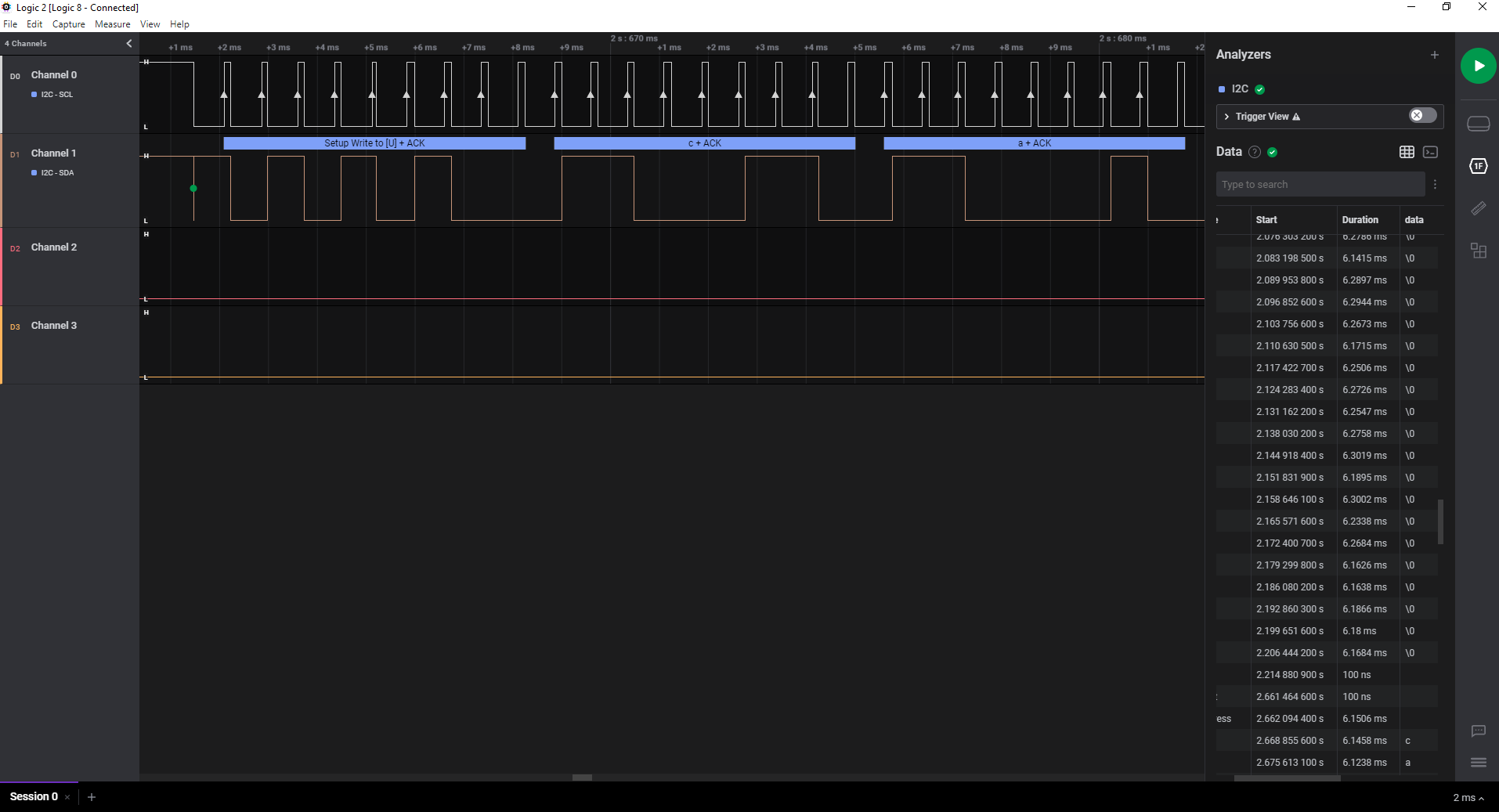
Figure 5 I2C Write Transaction Captured using a Logic Analyzer
Figure 6 illustrates only the first two of the total read bytes.

Figure 6 I2C Read Transaction Captured using a Logic Analyzer